
Collapse item list groups
Overview
This is another little improvement for the item list. When we are activating the grouping for the item list WEBCON BPS will display the rows expanded (1). If you activated the summary for a column, you would get a summary for the group and the grand total (2).
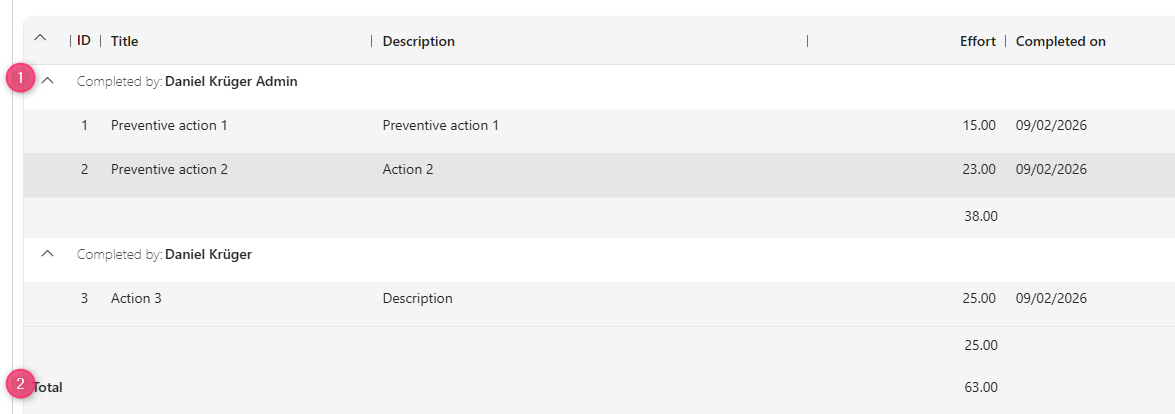
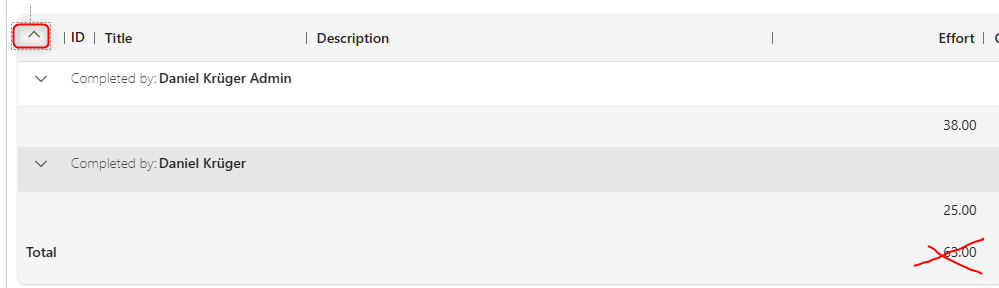
Depending on your use case, it would be sufficient to see the collapsed information and the grand total can be useless. For example, if you would display the quantity of different items.
Implementation
General
I’m not sure how often I’ve written this already, but it’s the same approach as always. :)
We need:
- A global form rule.
- A HTML field to pass some configuration
- Activate the grouping
Global form rule
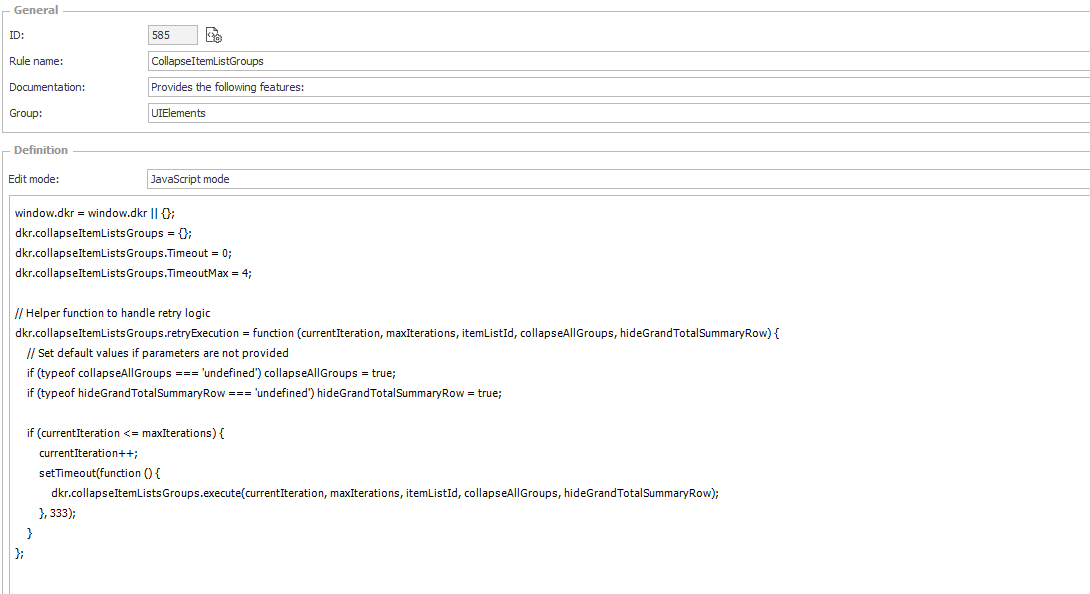
You can download the JS for this form rule from the repository and paste it to the new form rule. Don’t forget to switch the type to JavaScript mode.
Rule name: CollapseItemListGroups
Edit mode: JavaScript mode
Description:
Provides the following features:
- option to collapse the groups of an item list by default
- Collapse/expand all groups
- Hide grand total summary row

Usage in an HTML field

<script>
InvokeRule({BRUX:1182:ID});
// ....execute = function (currentIteration, maxIterations, itemListId, collapseAllGroups, hideGrandTotalSummaryRow) {
// collapseAllGroups and hideGrandTotalSummaryRow are set to true by default.
// The WFCON variable is not in the correct format, to prevent any issues.
dkr.collapseItemListsGroups.execute(0,4,{WFCON:425})
</script>
HTML field
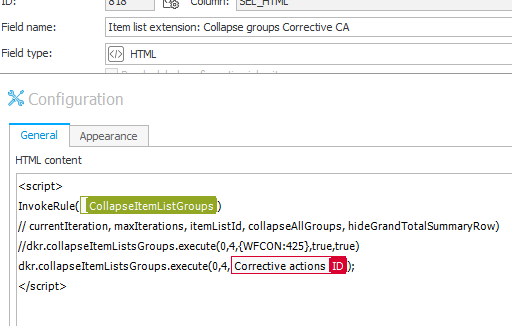
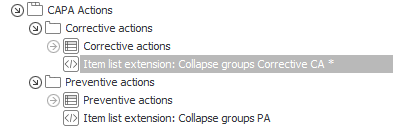
This is also simple, we need to load the form rule within an HTML field, call the executefunction and pass at least the item list id.
The HTML content:
<script>
InvokeRule(#{BRUX:585:ID}#)
// currentIteration, maxIterations, itemListId, collapseAllGroups, hideGrandTotalSummaryRow)
//dkr.collapseItemListsGroups.execute(0,4,{WFCON:425},true,true)
dkr.collapseItemListsGroups.execute(0,4,#{WFCON:812}#);
</script>
Don’t forget to mark the HTML field as visible in the field matrix.
The HTML field should be placed below the Item list field. If you have an item list in a tab, you need to create multiple fields. The reason for this is, that switching to a new tab will destroy the fields in the previous one and create the new fields.
Activate grouping
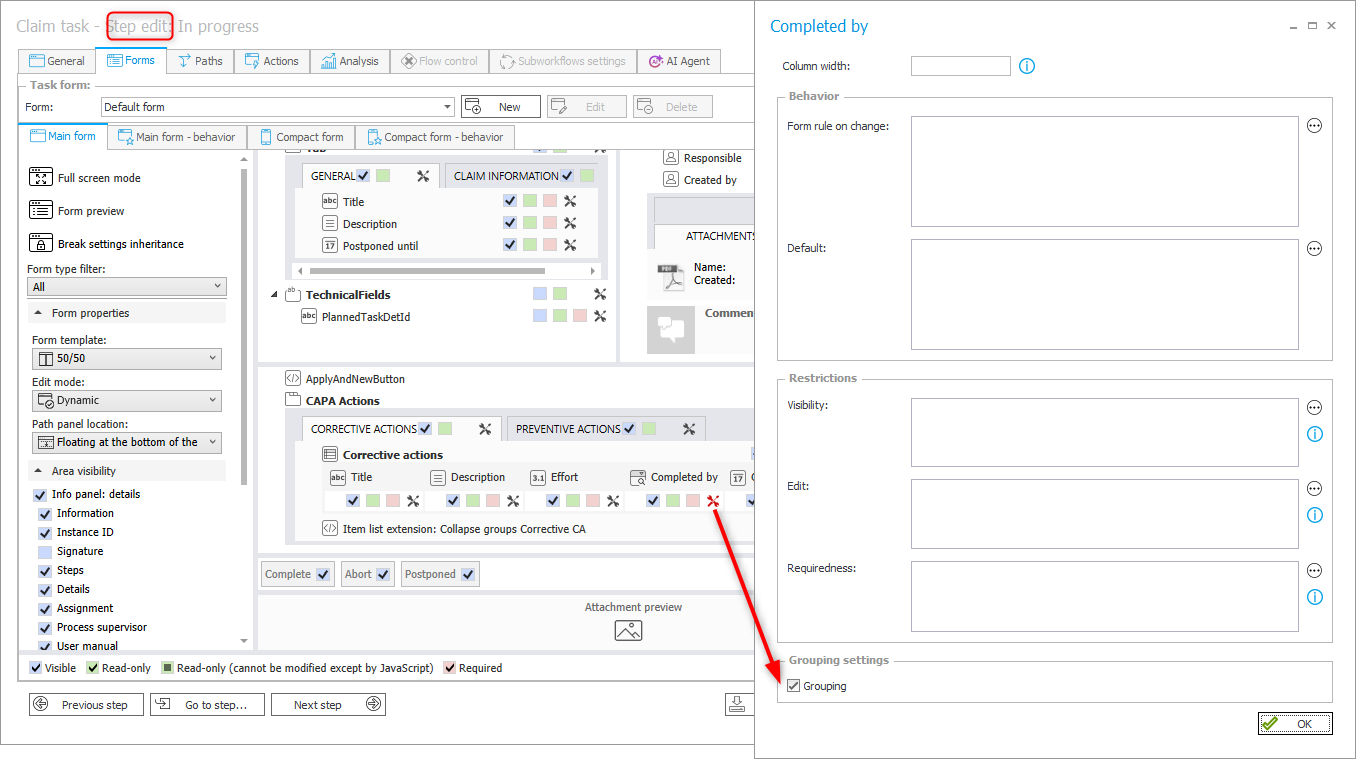
For whatever reason, you have to activate the grouping in the form configuration of the step. I hope this will be redesigned when WEBCON has finished the transition to the web-based designer studio.
Usage
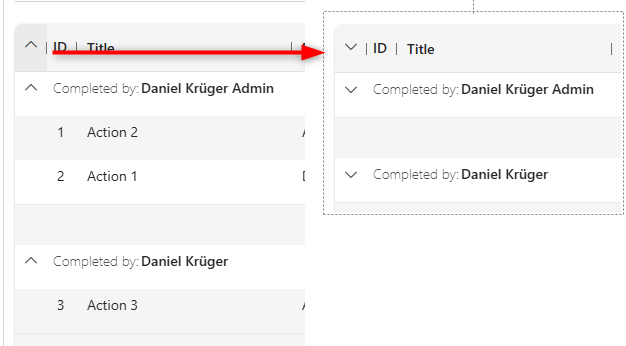
In this case the only ‘usable’ element is the toggle all icon in the top left corner.
Explanations
Parameters
The execute function will try a defined number of times to find the item list and execute the logic. It may take some time until it’s rendered. Placing the HTML field below the item list helps to reduce the number of executed tries
- currentIteration The current try number. This is passed as a parameter, so that the function can be called for different item lists.
- maxIterations When the target element is not found after this number of tries, the script execution will stop.
- itemListId
- collapseAllGroups The target initial state of the item list groups
- hideGrandTotalSummaryRow Defines whether the grand total summary should be hidden.
When do I use configuration variables and when parameters
In my previous post Single row edit: Apply and add new I used a property to configure multiple item lists:
<script>
InvokeRule(#{BRUX:1448:ID}#);

dkr.singleRowEditApplyAndAddNew.itemLists = [
    {listId: #{WFCON:1132}#, columnId : #{DCN:167}# }
  , {listId: #{WFCON:1129}#, columnId : #{DCN:158}# }
];

</script>
In this post I’m using a different approach:
<script>
InvokeRule(#{BRUX:585:ID}#)
// currentIteration, maxIterations, itemListId, collapseAllGroups, hideGrandTotalSummaryRow)
//dkr.collapseItemListsGroups.execute(0,4,#{WFCON:425}#,true,true)
dkr.collapseItemListsGroups.execute(0,4,#{WFCON:812}#);
</script>
The reason for this is the following. The first one doesn’t interact with an immediately available element. It needs to wait that something needs to happen. The second one should interact with the item list as soon as it is available. In addition, it needs to be executed again every time the item list is rendered again, for example if the user switches tabs.
Display the group and group summary in one row
I tried to display the group summary in the same row as the group information, but I haven’t been able to achieve this in a way that it’s working reliable and in a technical way I liked. It would need support:
- Initial rendering of the item list group
- Toggling of individual groups
- Toggling of all groups
- Working with item lists which have different numbers of columns If someone comes up with a feasible solution, feel free to contact me.
Download
You can find two different versions for WEBCON BPS 2025 and WEBCON BPS 2026 here.
I’ve decided to split these as it turned out, that I don’t have the time to test them for different versions and make them compatible.
Comments