
Displaying a maintenance page during WEBCON BPS updates
Overview
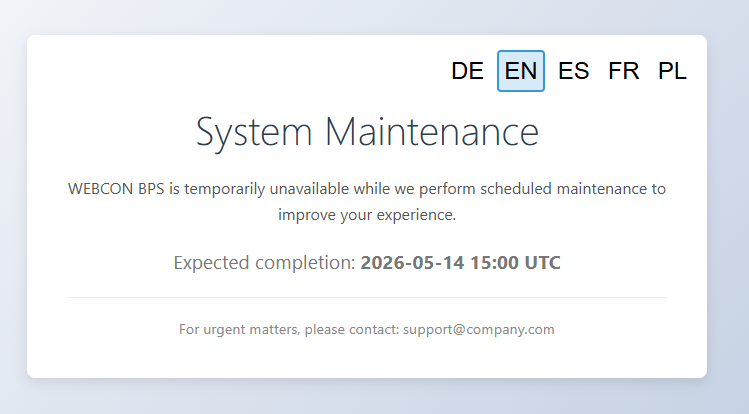
Whenever I update a WEBCON BPS environment, users who try to open the BPS Portal run into a generic IIS error. That’s not a great experience. A dedicated maintenance page is a simple way to communicate what is happening, when the system will be back, and who to contact for urgent matters, without touching BPS at all.
Implementation
General
The implementation consists of two parts:
- A PowerShell setup script
This creates the IIS sites and copies the bindings from the existing WEBCONBPS site. - A static HTML maintenance page
Served by a separate IIS site.
The files
IIS setup script
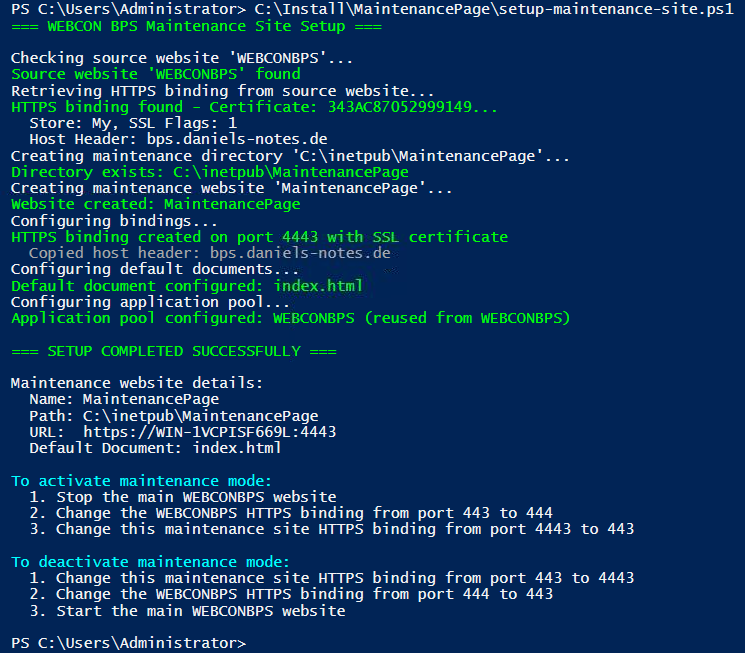
The PowerShell script needs to run once on the web server as Administrator. It reads the HTTPS binding from the existing WEBCON BPS IIS site (certificate hash, store, host header, IP address), creates a new IIS site at the configured maintenance port, assigns the same certificate, and sets index.html as the default document. The script accepts a few parameters for customization:
Script name: setup-maintenance-site.ps1

Parameters (all optional):
  -SourceWebsiteName      IIS site to copy the HTTPS binding from  (default: "WEBCONBPS")
  -MaintenanceWebsiteName Name for the new IIS site                (default: "MaintenancePage")
  -MaintenancePort        Idle port for the maintenance site        (default: 4443)
  -MaintenancePath        Physical path for the HTML files          (default: C:\inetpub\MaintenancePage)
Run with defaults:
.\setup-maintenance-site.ps1
Or override individual settings:
.\setup-maintenance-site.ps1 -SourceWebsiteName "MyWEBCONSite" -MaintenancePort 8443
Make sure to unblock the downloaded files from the properties dialog of the file.
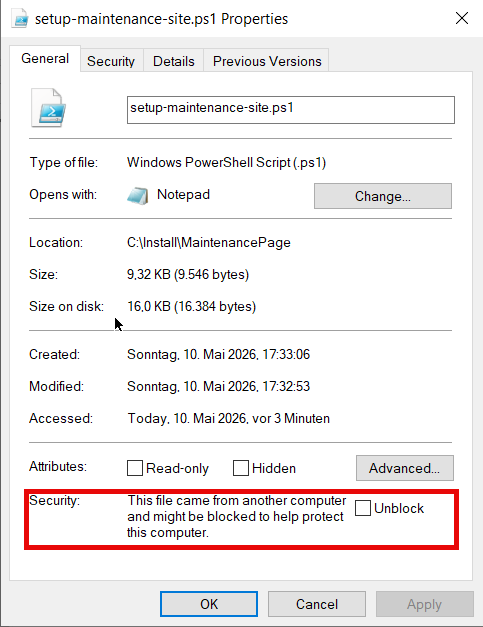
Otherwise you may run into an error when executing the PowerShell script.

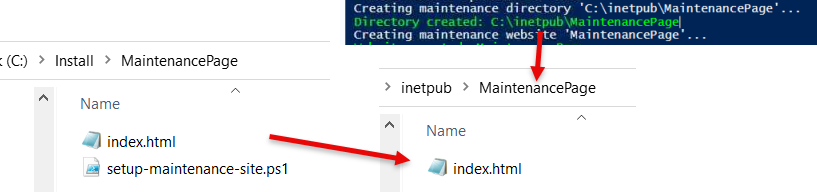
This is a result when running the script without any parameters:
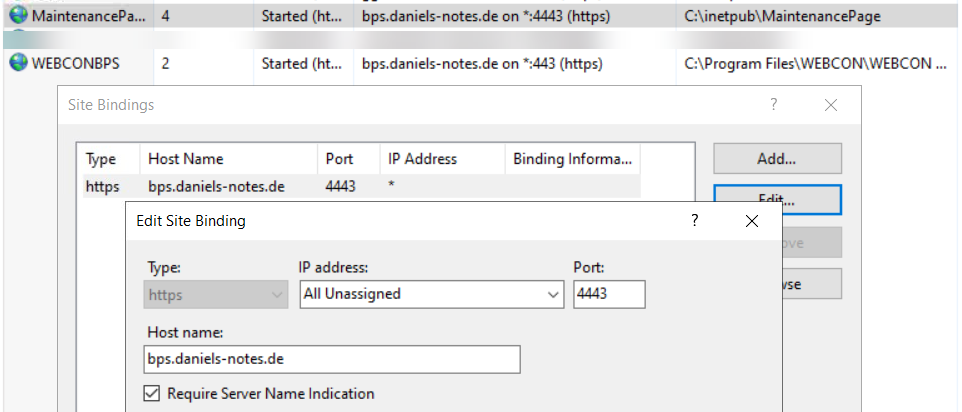
You can also verify the settings in the IIS.
Tip: Set this up right after your initial BPS environment deployment so the maintenance site is ready before you ever need it.
Remark If you execute the script a second time, the script will remove any created elements and recreate them, except the created folder in the file system.
Maintenance page (HTML)
After running the script, copy index.html into MaintenancePath. This isn’t done automatically as you have to modify the content anyway.
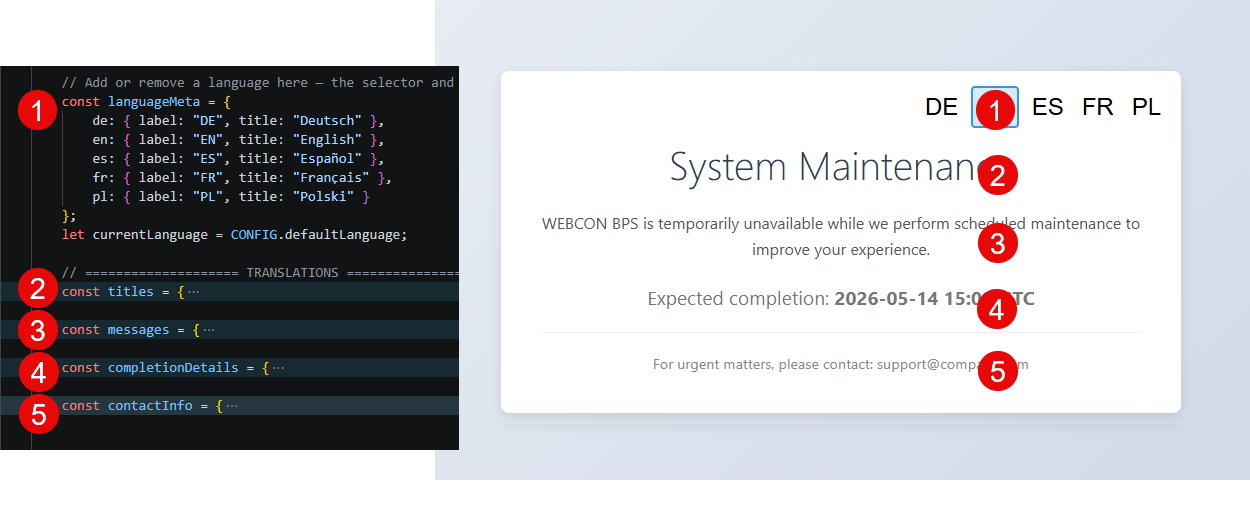
At the bottom of the file you can configure:
- Supported languages
- Header
This value is required. - A message for explaining the downtime
This value is required. - Contact information
It can be left empty. - A message for expected end of the downtime.
I decided against an explicit time so that you can be vague. It can be left empty.
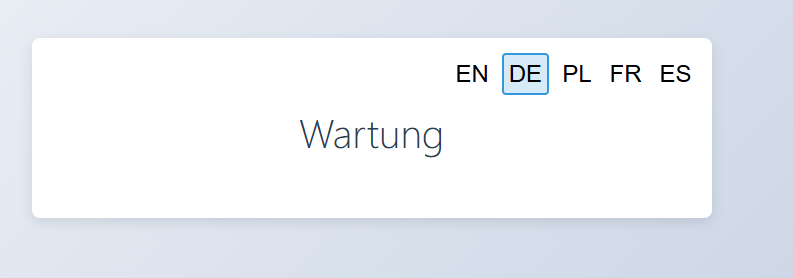
While I said that some information is required, this only means that the page may look strange without these.
Usage
Activating the maintenance page is quite easy
- Stop the main
WEBCONBPSIIS website. - Change the
WEBCONBPSHTTPS binding from port 443 → 444. - Change the
MaintenancePageHTTPS binding from port 4443 → 443. - Ensure that the
MaintenancePageis running and is not stopped from the last update. - Restart the main
WEBCONBPIIS website.

Users navigating to the default URL will now see the maintenance page.
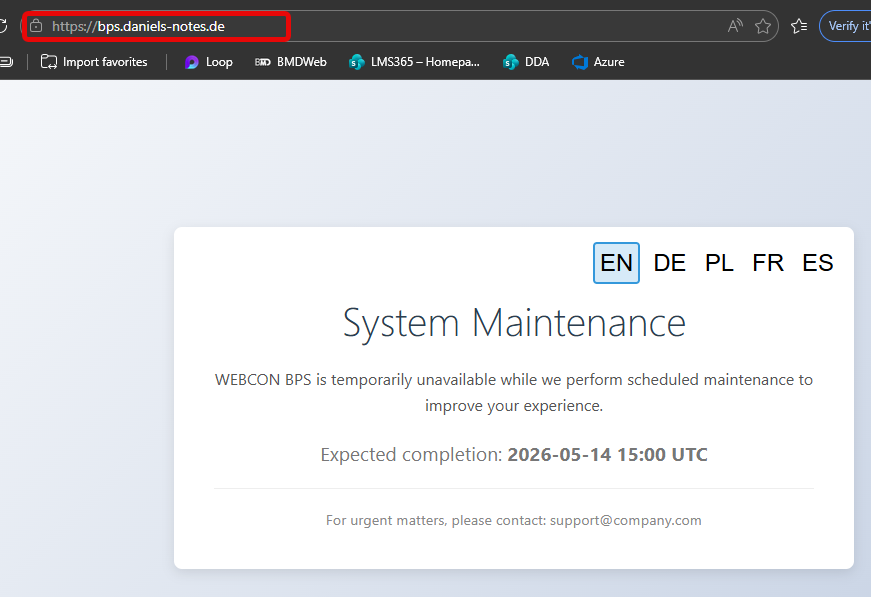
This will allow you to install any update, do other maintenance actions in the Portal (1) and also open the Designer Studio (2).
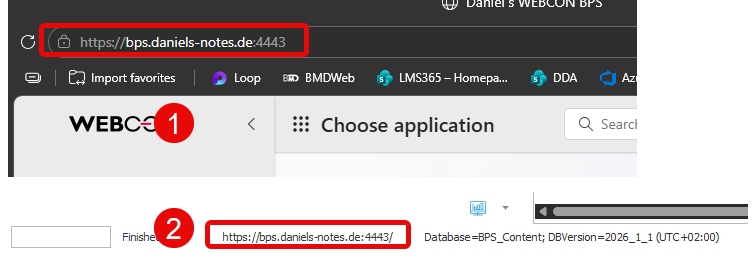
When you are done you can just revert the steps.
- Stop the main
WEBCONBPSIIS website. - Change the
MaintenancePageHTTPS binding from port 443 → 4443. - Change the
WEBCONBPSHTTPS binding from port 4443 → 443. - Restart the main
WEBCONBPIIS website. - Optionally, stop the
MaintenancePage
This is a short checklist:
- Update the completion time in the
index.html. - Switch the ports, ensure both pages are running.
- Install the WEBCON BPS update.
- Do other maintenance.
- Switch the ports again.
Remarks
Microsoft Entra authentication
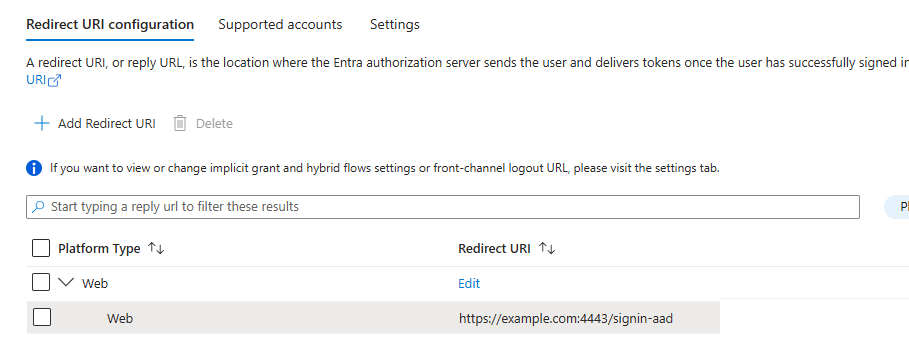
If the WEBCON BPS environment uses Microsoft Entra ID (Azure AD) for authentication you will need to add a redirect URI with the alternative port (4443) before the maintenance window. Without it, you won’t be able to login.
https://<your-bps-hostname>:<MaintenancePort>/signin-aad
Infrastructure considerations
Depending on your network setup, additional changes may be required alongside the IIS binding swap:
- Firewalls / NSGs
The maintenance port (default4443) must be reachable from the internet if you want to access WEBCON BPS. The maintenance page would already be accessible after switching to port 443.
The setup script will add a rule to allow inbound traffic
- Reverse proxies / load balancers
If BPS is fronted by a proxy, the port swap needs to happen at the right layer. Depending on your setup you may need to adjust the proxy upstream instead of (or in addition to) the IIS binding. - SSL certificate
We are only changing the port, we can simply reuse the same SSL certificate.
Maintenance banner
Before entering the maintenance window you can show users an advance notification. There are two options in the WEBCON community:
This is an updated version for 2026 which can be added to the CSS:
.top-menu__content--center-node:before {
content: "Planned maintenance 2026-05-14";
color: var(--colorStatusDangerStroke2);
font-size: var(--fontSize36);
}
.top-menu__content--center-node {
    text-align: center;
}
Every user should take notice of it:
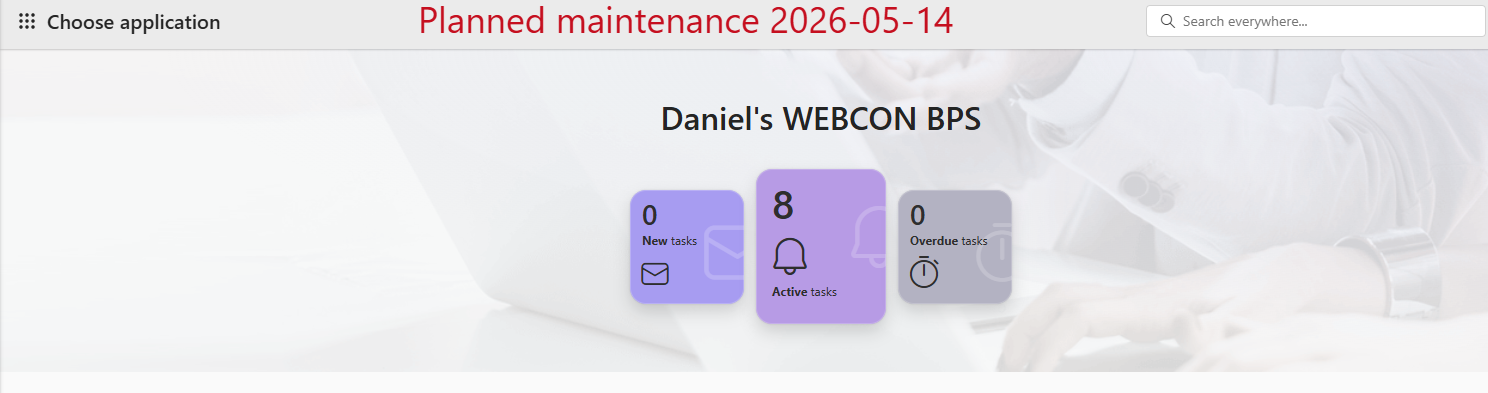
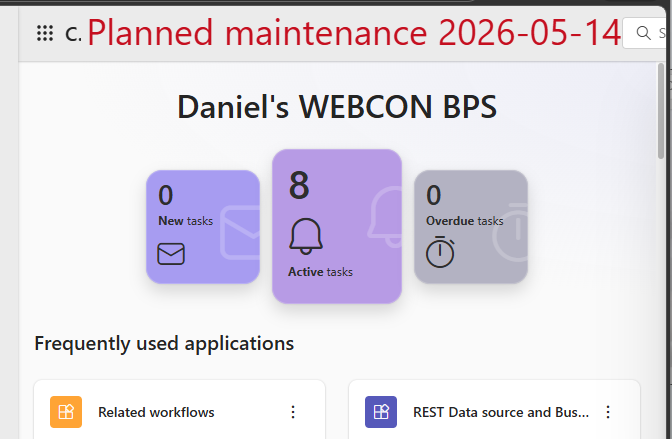
Especially if they don’t use the browser in full screen mode.
Verify the maintenance information
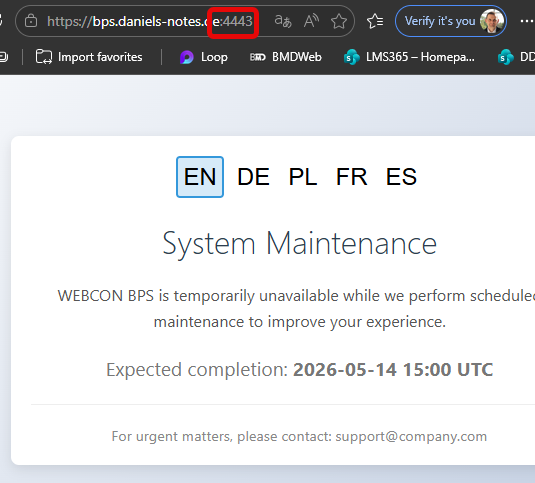
Of course, you can update the maintenance information and verify that maintenance page is correctly served when you use the maintenance port.
Download
You can find the files here.
Comments