
Read and update workflow instances via Excel
Overview
There are scenarios where you want to update many workflow instances at once. We can achieve this in reports using the mass actions. While this works, it requires a specific configuration and path transition.
On the other hand I’ve faced various scenarios in which I had an Excel file which had to be turned to workflows. In other cases, we needed to update some data. Both cases have often been related to migration, but I can think of other use cases, too. I’m also currently working on the replacement of an Excel macro file which generates dozens of PDFs with WEBCON processes.
At some point I was wondering whether we can simply combine those. We already have data in an Excel file; wouldn’t it be practical to create/update workflows with a macro/VBA?. Of course, it must work in the context of the current user it would be a no-go to embed client credentials in the macro. This means that we need the User Defined APIs. With these requirements I had a little discussion with AI and the result is speaking for itself. :)
Whenever I’m creating something like this, I’m looking for reusability and it may go a little overboard. Instead of a single use case scenario, it evolved to a configurable template. :)
It supports:
- Fetching workflow instance
- Update instances
- Create new instances
All of this is configurable in a worksheet, and you are not required to change the macro for it.
Info: If you are new to UDAs you should take a look at those posts: User Defined API — Overview (Part 1), User Defined API - Get data from data sources (Part 2) and Actions on a workflow instance (Part 3).
Implementation
WEBCON UDA setup
Fetching data
Fetching data requires a UDA with Running mode - Get data from the data source. In my case I have reused a dummy process which I also used for Calling a User Defined API Automation from a Form Rule. The fields don’t have fancy names or anything. ;)
The important parts, which we will also need in the Excel configuration later, are:
- URL path
- Display name
- Optional parameters and their names
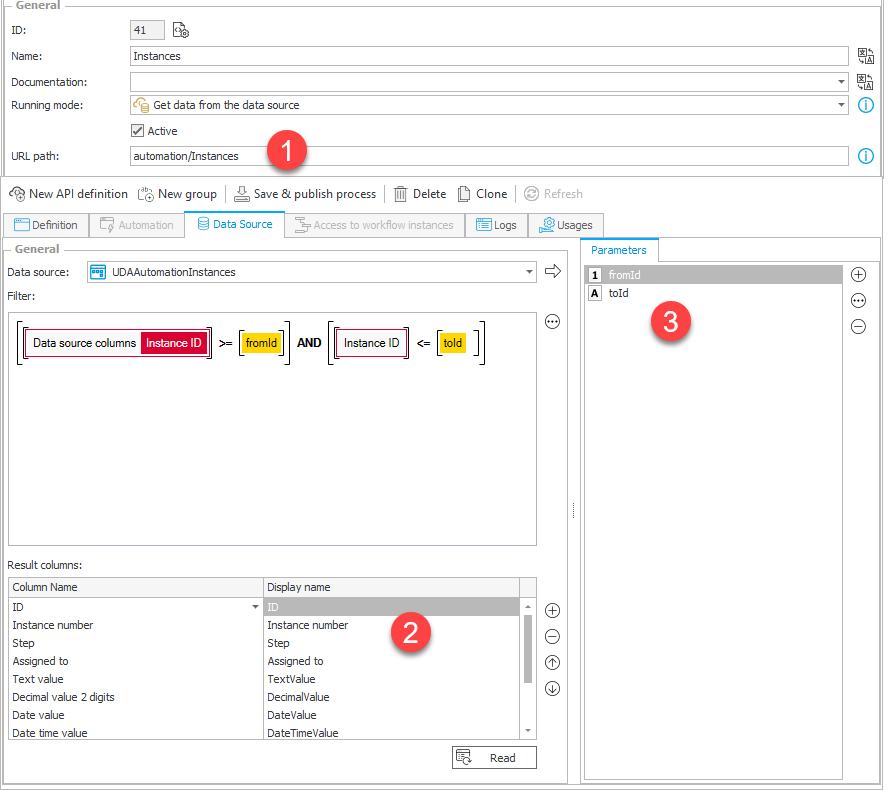
Remark: You may need to add filtering/paging if you want to fetch more than 1000 rows. I haven’t come up with a good idea to implement a generic paging solution. If you are running into it and you need more than 1000 rows, you will need to decide for a solution. AI should be able to extend the Macro for you, especially if you point it to the blog post.
Creating / Updating workflow instances
This requires a UDA with Running mode - Actions on a workflow instance. As with the fetch configuration we need similar information:
- URL path
- The activation of the supported options
- The names of the properties
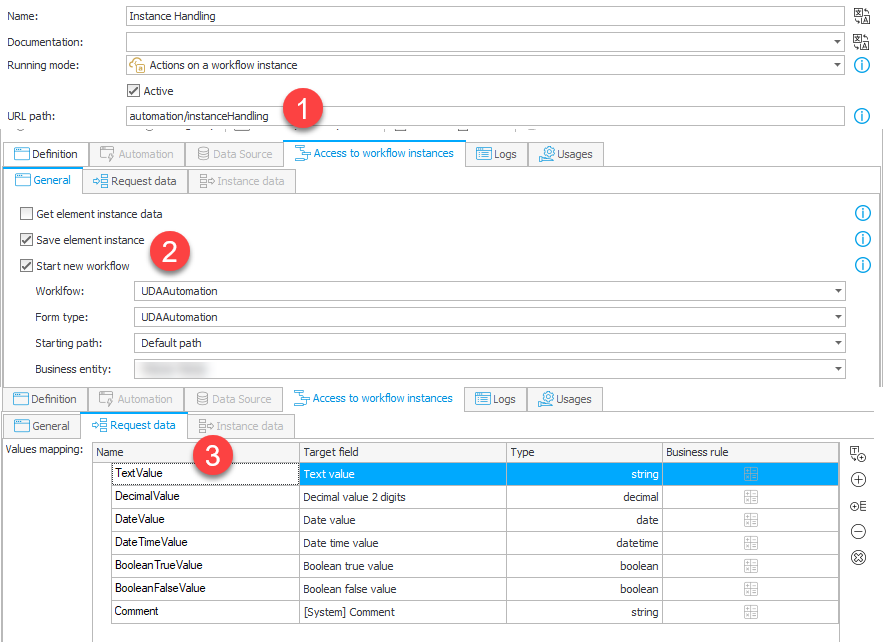
Remark: Unfortunately, one UDA can only create instances in the context of one business entity. If you have multiple business entities, you will have to create a dedicated workbook. This was what I wanted to write but I was too slow and my mind wandered off, while I was writing. :) We are inside an Excel workbook, while the provided VBA code doesn’t support changing the endpoint during the execution, we can have a formula instead of a fixed text. You could somewhere have a configuration cell with the target business entity, a mapping of each business entity to an endpoint and a vlookup formula to return the target endpoint. :)
Authentication
Don’t forget to activate the User authentication in WEBCON Portal (Cookie) flag. This will ensure, that only the users have to use their personal permissions for everything. While the users could send someone the Excel file, the recipients won’t be able to cause any harm for two reasons:
- The Excel file must be opened from WEBCON, without it, you are not authenticated.
- Even if you are allowed to open the file from WEBCON, you still need the privileges for the process to execute any updates.
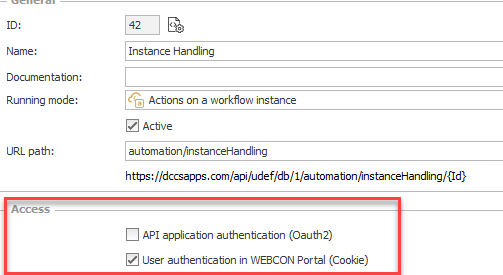
Technical information: After opening the Excel file, the user will need to authenticate. This authentication is stored in a cookie. The macro (VBA code) uses MSXML2.XMLHTTP to reuse this cookie. If the file is not opened from WEBCON, then there won’t be a cookie, and every API call will fail.
Excel workbook setup
The workbook contains a Workflows and a Configuration sheet. While you can change the name of the first one, the latter one is fixed. If you are changing this, then you will need to update the VBA code.
Configuration sheet
Base configuration
The configuration sheet holds the connection details in rows 1 through 8 (column A is the label, column B is the value):
| Row | Value |
|---|---|
| B1 | Base URL of your WEBCON server (e.g. https://your-server) |
| B2 | Database ID |
| B3 | Get Instances endpoint path (e.g. /automation/Instances) |
| B4 | Instance Handling endpoint path (e.g. /automation/instanceHandling) |
| B5 | Column formula for the ID column (e.g. =COLUMN(A:A)) |
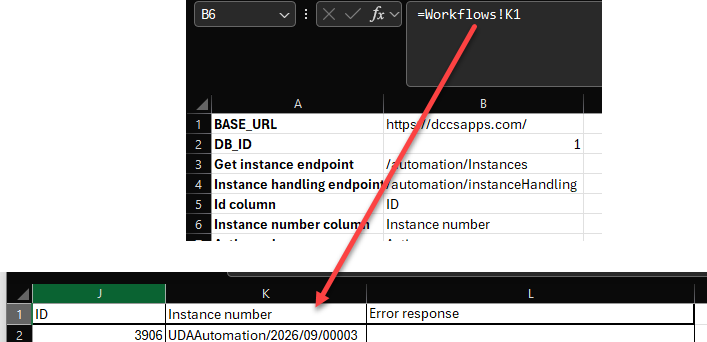
| B6 | Column formula for the Signature/Instance number column |
| B7 | Column formula for the Action column |
| B8 | Column formula for the Error column |
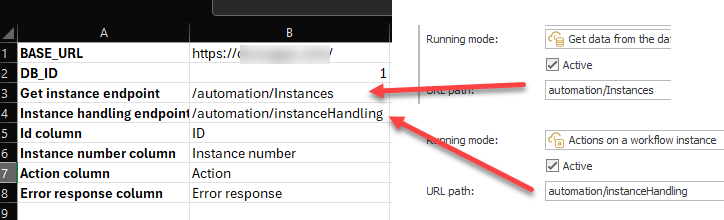
I wanted this to support any workflow which means that there will be different numbers of fields and you may want to change the order. The best way I came up with is that the mapping is done in such a way, that the target is defined with a formula. Changing the position of the column should therefore directly be reflected in the formula. No further configuring would be necessary. Pointing the formula to the label (first row) means that you can also see, that everything is mapped correctly.
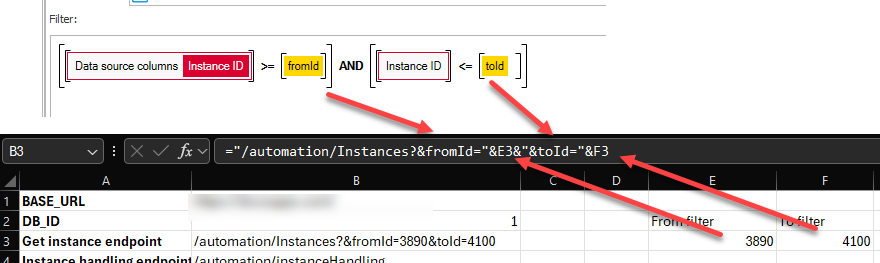
A simple filtering can be created with pure formulas. No one said, that the endpoint can’t contain the query parameters. ;)
Below row 8 the sheet has two mapping tables, one for fetching the data and one for updating/creating.
Get instances configuration
We need to map each API response property name (column A) to the corresponding data sheet column header. It uses the same logic as above. If a column is not mapped, it will be skipped.
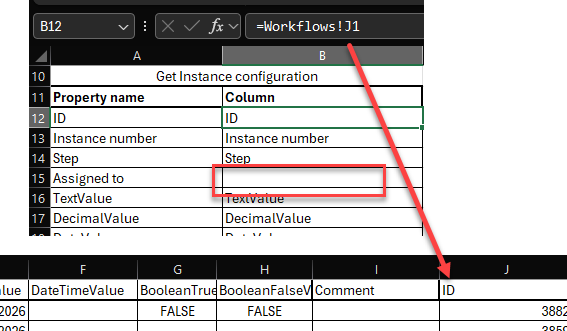
If there are not sufficient rows for mapping the properties, you can add these. The VBA code will iterate the rows, until the A column has an empty value.
Instance handling table
This table is like the one for getting the instances. We are mapping Excel columns (column A) to API request property names (column B) and their target JSON type (column C: String, Integer, Decimal, Boolean, Date, DateTime). This controls which columns are sent when creating or updating instances.
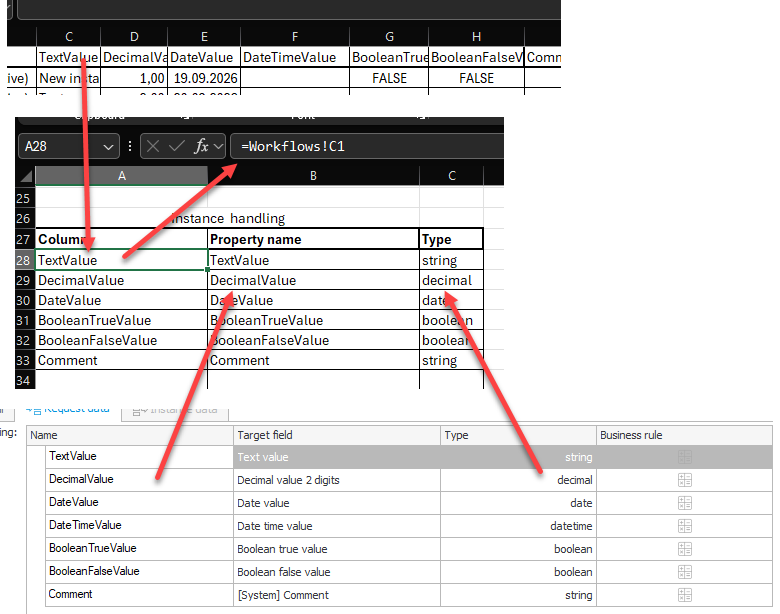
Info: The VBA code will locate the table by searching for the name. That’s the reason why you can add more rows to the Get Instance configuration table. Just make sure not to rename the label above the table. :)
VBA macros
The module exposes two real functions which you can assign to buttons.
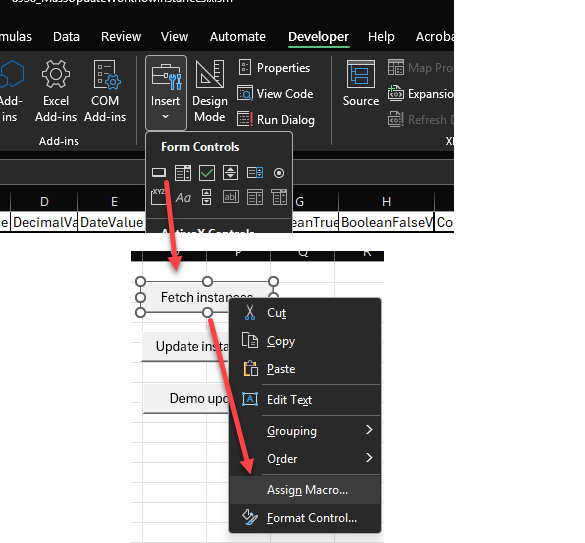
All functions use the active worksheet. This means that you could have multiple worksheets in the Excel file, if they use the same configuration. Maybe a dedicated one for creating new workflow instances and the other one for getting and updating data.
FetchInstances
This function calls the Get instance endpoint (Configuration!B3) endpoint, clears the existing data rows, and writes the returned instances into the active sheet starting from row 2.
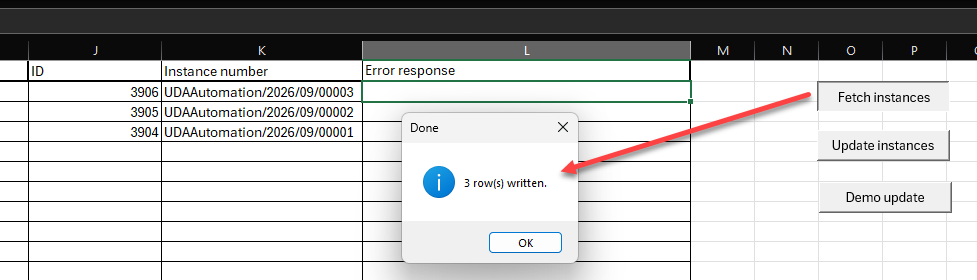
ProcessInstances
This function calls the Instance handling endpoint (Configuration!B4) endpoint and iterates every data row and checks the Action column:
- Create
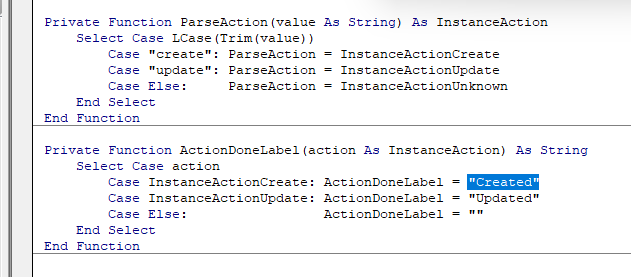
Will create a new workflow instance and write the returned element ID into the ID column and the instance number into the Signature column. The Action column value will be changed toCreated. - Update
Will use the element ID to update the instance with the row data. On success the Action column is changed toUpdated. - Other values
The row is skipped.
In my example I used data validation to prevent entering unexpected values.
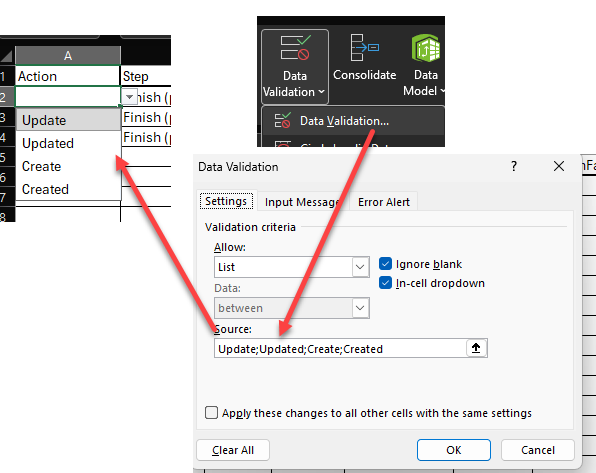
If you want to change the names, you need to update the macro:
Errors are written to the Error column of the affected row so you can see exactly which rows failed and occasionally have a meaningful error.
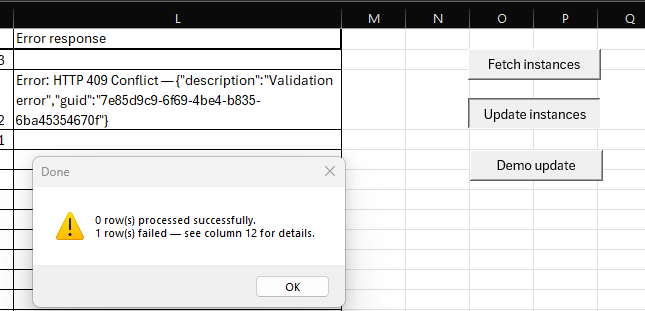
In my experience a 409 error refers to an issue when updating the workflow instance:
- The instance is checked out
- There are issues with the path transition.
In the example above I used a validate action which throws an error.
During the update you can see progress in the bottom left area of the Excel window and the interaction with the worksheet should be blocked.
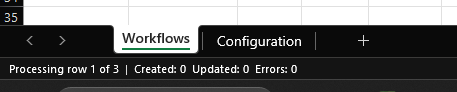
ProcessInstancesDemo
This has been added for demo purposes during the update process. After each row there will be a 1 second break. This is not meant for production usage. :)
VBA code creation
As mentioned in the beginning I just had the idea and a strong assumption that it should be possible to build such a solution. I ‘just’ provided the AI with the necessary information like the API definition of the UDA endpoints, my understanding on how the authentication should work and then we had a longer discussion. After the POC was done, I asked for more features and refactoring until the ‘final’ version of this post.
If you want to create an enhanced version with the help of AI I recommend the following approach:
- Click on the module
- Copy everything to a file
- Let AI do the magic.
- Copy the whole text content back
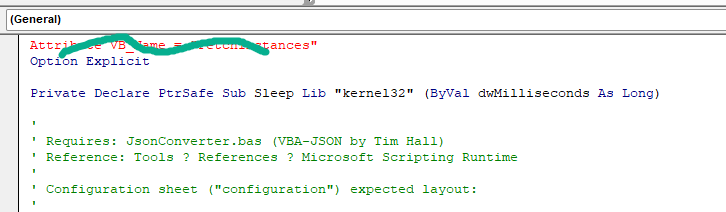
If you are using the provided FetchInstances.bas module, you can still copy the text. You simply need to remove the first row.
In case you want to also support moving workflow instances (1), you should download the API definition (2) and feed it to the AI.
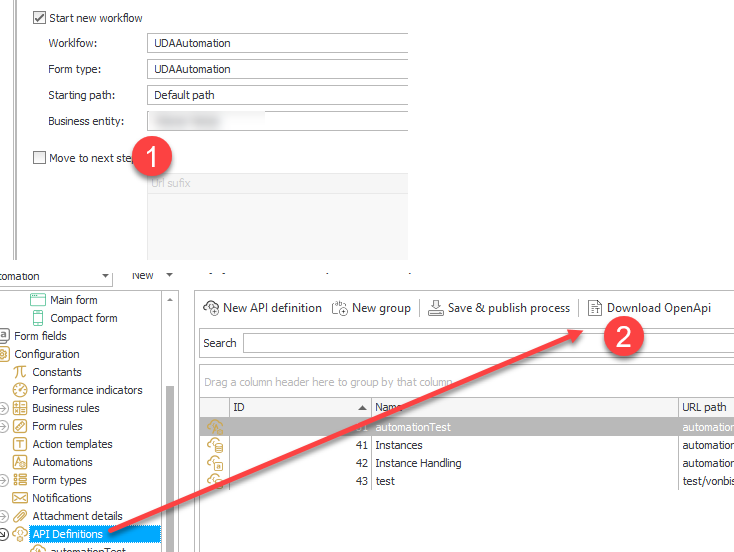
Download
In the GitHub folder here you will find the following:
- The Excel macro file
You can directly use this one, if you want, either with Macros enabled or not. - JSONConverter
This is a VBA module which is used for the JSON handling. As it should be, the copyright is retained. - FetchInstances
The VBA module with the WEBCON related code, it uses the JSONConverter module.
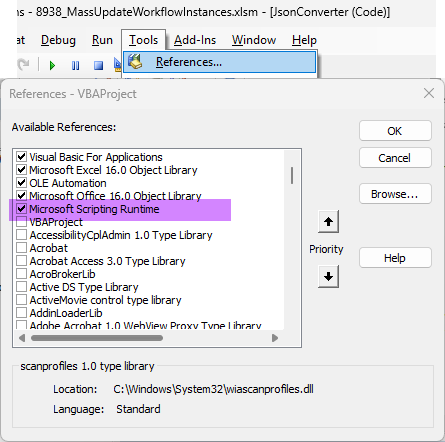
If you want to import the modules in your own Excel file you need to activate the Microsoft Scripting runtime for the JSONConvert.
Comments