
Calling a User Defined API Automation from a Form Rule
Overview
Let’s assume that you want to set information on a form based on the provided user input. The broadly known options are:
- Choose fields, which set target fields
- Define form rules which set other fields
- More complex, retrieve the data of these fields via business rules
While these work, it’s somewhat annoying, that business rules can’t return multiple values in terms of fields/columns from the same data. It’s not only a hassle to define these, but it’s also an unnecessary burden on the server and delay for the user. Using a User Defined API (UDA) can change this.
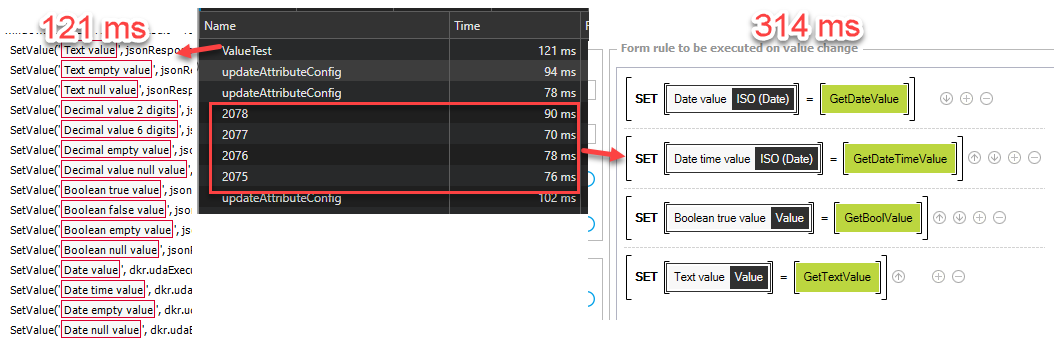
UDA and business rule comparison
Calling a UDA automation from a form rule is like calling a business rule. There are two important differences though.
-
No access to the workflow instance**
A business rule runs in the context of the current workflow instance and can read field values directly. An UDA automation has no such context. Any data it needs must be passed explicitly in the request body. At least, if the user can modify the data of the field in the current step. -
JSON response instead of a single value A business rule returns a single value. A UDA automation returns a JSON object. This allows us to return multiple values, which improves the user experience.
Activating the cookie-based authentication will allow all users to call the UDA with their credentials.
Implementation
The implementation consists of two parts:
- A global form rule
- A HTML field
Global form rule
The global form rule will abstract a few things and let’s you focus on the actual implementation. It defines a window.dkr.udaExecution object with helper functions that handle the HTTP call, error responses, and data type conversions.
You can download the JavaScript for the business rule from the repository
Rule name: ExecuteUDALogic
Description: Helper to execute an UDA endpoint from a form rule and work with the result. For example, to set multiple form fields.
Edit mode. JavaScript mode
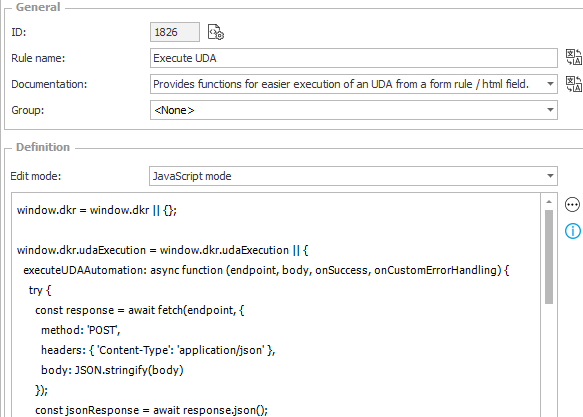
This will provide you with the following functions.
-
executeUDAAutomation(endpoint, body, onSuccess, onCustomErrorHandling)**
Sends a POST request to the given endpoint with the body serialized as JSON. On success it callsonSuccesswith the parsed response object. On error it callsonCustomErrorHandlingif provided, otherwise it falls back todefaultErrorHandling. -
GetBoolValue(fieldName)**
Reads a checkbox field withGetValueand converts the result to a boolean. The standardGetValuefunction of WEBCON returns1or0for checkbox fields. UDAs expecttrueorfalseinstead. Unfortunately the GetValue also returns0fornullvalues. I’ve no idea how we can work around this. See also the remarks section below. -
ParseDateTimeValue(value)**
WEBCON returns null dates as0001-01-01T00:00:00. This function will returnnullinstead or the actual value.
HTML field
Minimum setup
The minimum HTML field will consist of four parts:
- Invoke the global business rule
- Define the UDA endpoint
- Function which triggeres the execution
- Another function to process the result which is passed as the
onSuccessparameter.
<script>
  InvokeRule(#{BRUX:1826:ID}#);
  var udaEndpoint = "/api/udef/db/1/automation/ValueTest";

  window.executeGetInputValues = function () {
    let body = {
      "TextInput":    GetValue('#{FLD:4329}#'),
      "DecimalInput": GetTypedValue('#{FLD:4328}#').value,
      "DateValue":    GetTypedValue('#{FLD:4332}#').value,
      "BoolTrueValue":  dkr.udaExecution.GetBoolValue('#{FLD:4330}#'),
    };
    // Execute UDA with default error handling
    window.dkr.udaExecution.executeUDAAutomation(udaEndpoint, body, window.setBodyFromUDAResult);

    // Example with custom error handling:
    // window.dkr.udaExecution.executeUDAAutomation(udaEndpoint, body, window.setBodyFromUDAResult,
    //   function (status, jsonResponse) { alert('Custom error handling'); });

  }

  window.setBodyFromUDAResult = function (jsonResponse) {
    SetValue('#{FLD:4314}#', jsonResponse.Data["TextValue"]);
    SetValue('#{FLD:4320}#', dkr.udaExecution.ParseDateTimeValue(jsonResponse.Data["DateValue"]));
  }

</script>
Example with buttons
In my example, I wanted to have buttons to trigger the UDA.
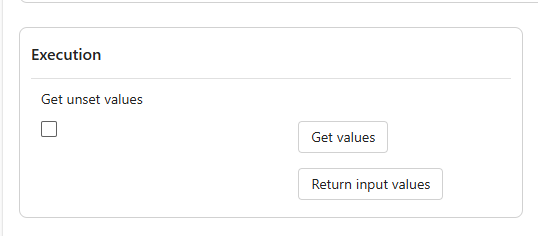
The HTML field contains the buttons and the JavaScript that calls the automation. Load the global form rule with InvokeRule at the top so the helper functions are available.
<div>
  <button type="button" onclick="executeGetValues()"
    class="webcon-ui button-base button button--primary button--rounded button--medium button--icon-text toolbar-button__button">
    Get values
  </button>
  <button type="button" onclick="executeGetInputValues()"
    class="webcon-ui button-base button button--primary button--rounded button--medium button--icon-text toolbar-button__button">
    Return input values
  </button>
</div>
<script>
  InvokeRule(#{BRUX:1826:ID}#);
  var udaEndpoint = "/api/udef/db/1/automation/ValueTest";

  window.executeGetValues = function () {
    let body = {
      "ReturnUnsetValues": dkr.udaExecution.GetBoolValue('#{FLD:4306}#')
    };
    window.dkr.udaExecution.executeUDAAutomation(udaEndpoint, body, window.setBodyFromUDAResult);
  }

  window.executeGetInputValues = function () {
    let body = {
      "ReturnUnsetValues": dkr.udaExecution.GetBoolValue('#{FLD:4306}#'),
      "ReturnInputValues": true,
      "TextInput":    GetValue('#{FLD:4329}#'),
      "DecimalInput": GetTypedValue('#{FLD:4328}#').value,
      "DateValue":    GetTypedValue('#{FLD:4332}#').value,
      "DateTimeValue":GetTypedValue('#{FLD:4327}#').value,
      "BoolTrueValue":  dkr.udaExecution.GetBoolValue('#{FLD:4330}#'),
      "BoolFalseValue": dkr.udaExecution.GetBoolValue('#{FLD:4331}#'),
    };
    window.dkr.udaExecution.executeUDAAutomation(udaEndpoint, body, window.setBodyFromUDAResult);
  }

  window.setBodyFromUDAResult = function (jsonResponse) {
    SetValue('#{FLD:4314}#', jsonResponse.Data["TextValue"]);
    SetValue('#{FLD:4311}#', jsonResponse.Data["TextEmptyValue"]);
    SetValue('#{FLD:4316}#', jsonResponse.Data["TextNullValue"]);
    SetValue('#{FLD:4304}#', jsonResponse.Data["DecimalValue2Digits"]);
    SetValue('#{FLD:4322}#', jsonResponse.Data["DecimalValue6Digits"]);
    SetValue('#{FLD:4323}#', jsonResponse.Data["DecimalEmptyValue"]);
    SetValue('#{FLD:4312}#', jsonResponse.Data["DecimalNullValue"]);
    SetValue('#{FLD:4317}#', jsonResponse.Data["BooleanTrueValue"]);
    SetValue('#{FLD:4313}#', jsonResponse.Data["BooleanFalseValue"]);
    SetValue('#{FLD:4318}#', jsonResponse.Data["BooleanEmptyValue"]);
    SetValue('#{FLD:4321}#', jsonResponse.Data["BooleanNullValue"]);
    SetValue('#{FLD:4320}#', dkr.udaExecution.ParseDateTimeValue(jsonResponse.Data["DateValue"]));
    SetValue('#{FLD:4315}#', dkr.udaExecution.ParseDateTimeValue(jsonResponse.Data["DateTimeValue"]));
    SetValue('#{FLD:4310}#', dkr.udaExecution.ParseDateTimeValue(jsonResponse.Data["DateEmptyValue"]));
    SetValue('#{FLD:4319}#', dkr.udaExecution.ParseDateTimeValue(jsonResponse.Data["DateNullValue"]));
  }
</script>
Example with On value change of a field
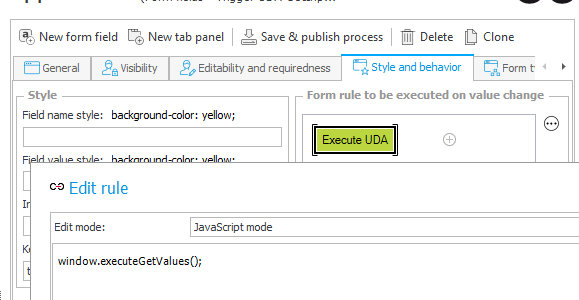
Alternatively, you can trigger the execution, but you can also create a form rule in JavaScript mode, which you can trigger the defined functions in the HTML field. The only important part is to set the edit mode of the form rule to JavaScript mode
Remarks
I had to add wrapping functions for bool and date values which may not be necessary in future versions. Take also a look at the general remarks regarding the Automation execution mode.
Inconveniences, pitfalls and workarounds
Download
You can find the files here.
Comments