
Add content to WEBCON forms using AI
Overview
One part of migration is data verification. While I’m ‘just’ helping with it and the final responsibility lies with the end users, I’ve spent way too much time doing it myself. It’s an annoying part and something I wish to spend as little time as possible on. To make things worse, the old system is often decommissioned after migration, so when a user asks a question three months later, there’s nothing to reference.
During the last migration I came up with the idea of storing the metadata of a SharePoint item as a JSON attachment. This way the data can be verified at any time by the users themselves. In the age of AI, rendering that metadata directly inside the WEBCON form turned out to be surprisingly simple.
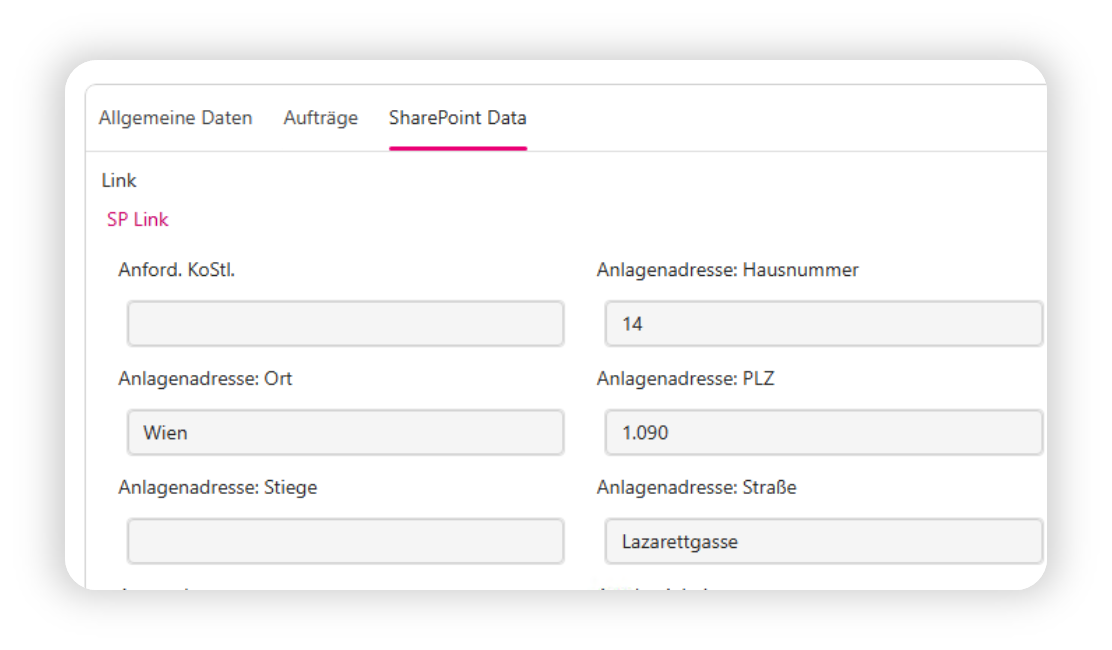
While I will provide the final files at the end, this isn’t the topic of the blog. I want to encourage you to think out of the box and use AI for improvements. Therefore, I will list my simple prompts which lead to a major improvement for the users. This is just one case, and it may be the little spark for you to bring your own ideas to life.
General idea
The general idea is quite simple:
- We have the metadata in the form of a file
- The content of the file may change for each SharePoint item, but not the structure.
- The content is stored as simple text in JSON format, which every browser understands natively
- We have an existing form design which should be reused
This means that we already have everything; we just need to put it together.
Prerequisites
Save the form design and structure to a file
The form design can be saved to a file:
- Navigate to a WEBCON form and open developer tools (F12)
- Select a part of the form with all field types
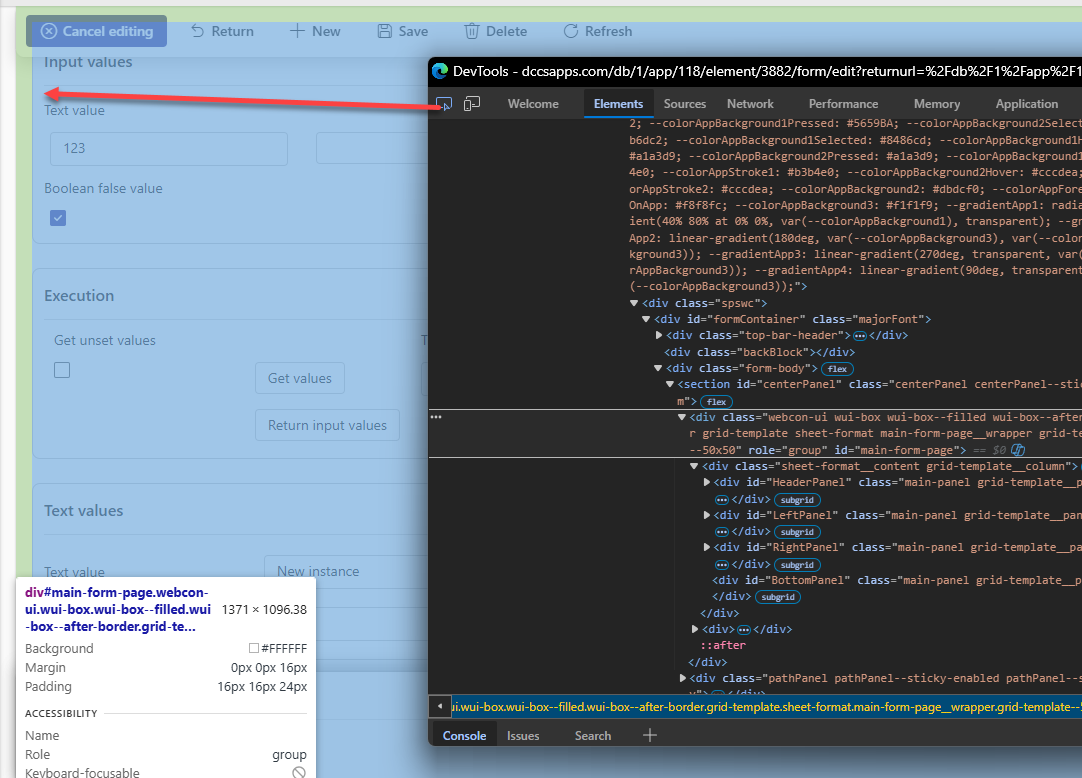
- Copy the outer HTML of the element
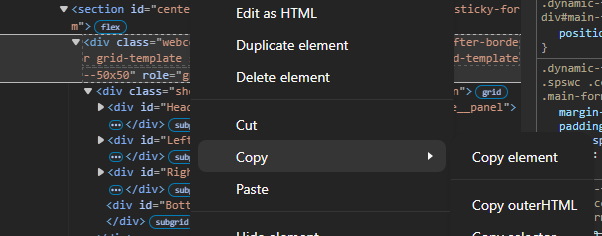
- Save it to a file
Download an example of the metadata
This should be straightforward. I used the standard options to download the SharePoint.json file from the attachment panel. :)
Retrieving the file content
We are lucky, WEBCON will simply render any text file in a preview. This is done with a simple link which we can make use of.
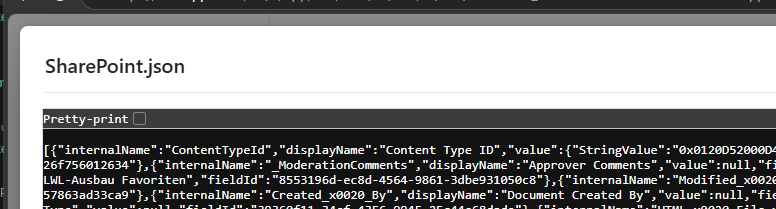
Using the developer tools, we will be able to locate the iframe showing the file content.
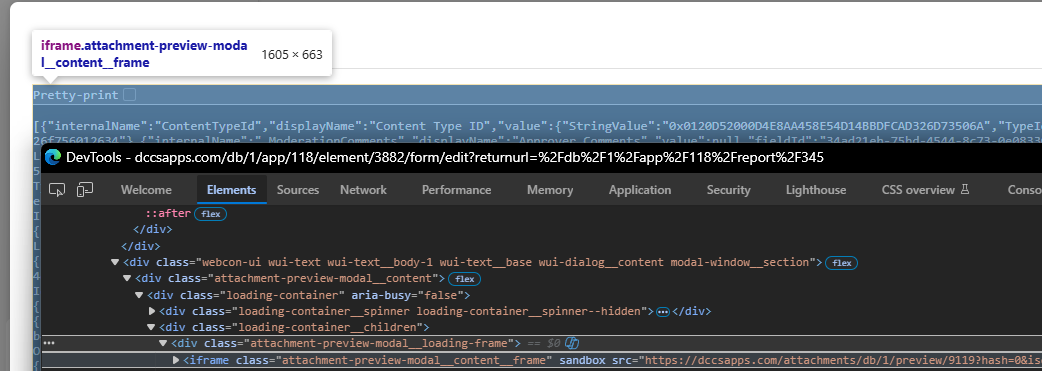
We now have the link for getting the file content:
https://dccsapps.com/attachments/db/1/preview/9119?hash=0&isdesignerdesk=0&authkey=
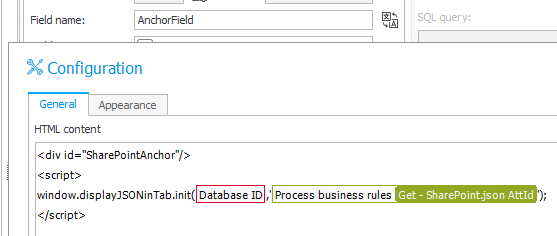
The only variable values are the database id and the attachment id. The database id is available as a variable. The missing information is the attachment id.
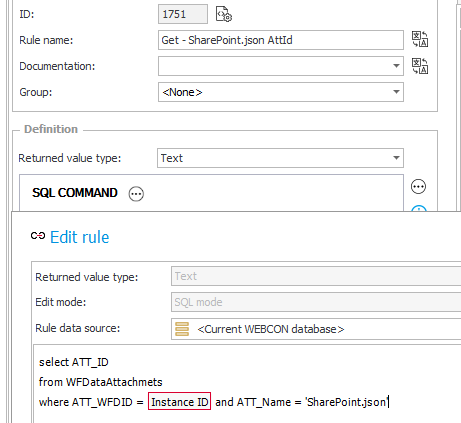
Business rule returns attachment id
If the file has always the same name you can create a business rule to retrieve it:
select ATT_ID
from WFDataAttachmets
where ATT_WFDID = {WFD_ID} and ATT_Name = 'SharePoint.json'
Prompts
Information
In the following chapters you will read the prompts I used. The prompts are neither translated nor corrected. When I’m working, I’m always writing in English which is far from perfect. :)
I will add information in each chapter, to explain a few things which are good to know about WEBCON and why I mentioned them at all.
General prompt
I have a third party Single Page application and I don’t have any ability to make changes to the existing DOM structure. I want to display SharePoint Metadata stored in a JSON file in the browser. The file @displayJSONinTab/htmlTemplate.html contains an extract of the generated HTML. Can you create JavaScript which would generate an HTML for displaying the JSON information of @displayJSONinTab/SharePoint.json with groups and fields? The data is readonly.
This generated HTML should be added as siblings to ‘<div id="SharePointAnchor"/>’. The element will exist in the SPA.
I’m using Claude in VS Code where I can reference fields with @xyz. This may be different in your case.
Single Page Application (SPA): When you open the WEBCON portal for the first time in the browser a lot of information will be fetched. If you navigate to other areas the performance is improved by loading and changing only the necessary information instead of everything. This makes a big difference in how you/the AI need to place elements because they should not be in effect when navigating away. In this case I’ve used the fixed id SharePointAnchor.
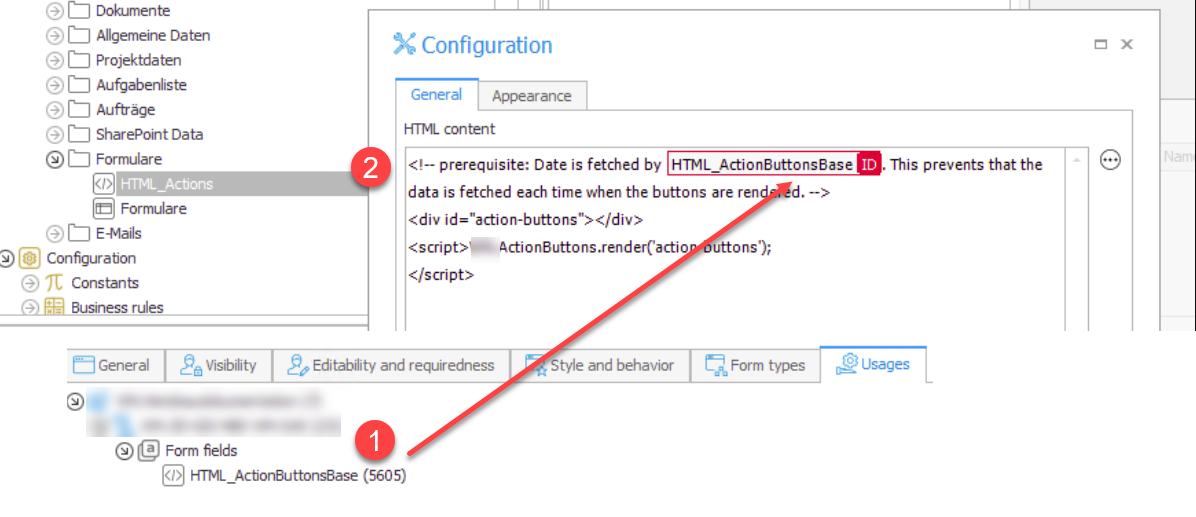
We need something on the page which will always exist and which can be used by the AI to render the additional content. I created this element in an HTML field inside a tab. If a user switches the tab, the whole content of the tab is removed, it’s not just hidden. This also means, that everything in the HTML field is executed again, when the user switches to the tab. That’s why our JavaScript in the HTML field is executed each time and recreates the context. Depending on your own use case and especially if you retrieve large amounts of data, it’s a good idea to do this in an HTML field outside of a tab (1) and then have a second HTML field, which is just triggering the rendering (2), when the tab is displayed. Adding a reference to the other field in a comment will in turn allow you to use the Usages tab to see where it is used. I have a use case, where I’m triggering this rendering lots of times but with different ids. The other benefit is that you can accidentally delete the fields, if you are referencing them in the others.
Adding attachment loading
Maybe we should skip the Groups and just list the properties in an alphabetical way. This Script should be used with different JSON content.
The JSON can be fetched using this endpoint where the database id (1) and attachment id (9119 ) can be provided as a parameter to execute the function.
/attachments/db/1/preview/9119
The initial JavaScript for rendering the content is done using the downloaded metadata as an example. We need to update the logic to load the metadata of the file.
Improve field rendering
I’ve a few additions:
- Can you use the variable G_BROWSER_LANGUAGE to determine the language. This will return for example en-us and should be used for formatting numbers and date.
- If dates are not stored with 0:00:00 UTC time value, the time should be displayed too.
- Boolean values should be displayed with a checkbox, please take a look in the @displayJSONinTab/htmlTemplate.html and with div ID:AttBool3 for an example.
SharePoint metadata doesn’t store the time zone
As far as I can tell, if a datetime string hasn’t the Z extension it should be displayed as a date. Since the hours are still part of the value “2012-12-30T23:00:00” it seems that the date is stored with a UTC value. Can you display these values as dates in local time zone.
Executing the logic
Can you modify the @displayJSONinTab/displayJSONinTab.html so that I can call an “init” function to pass the database id and attachment id?
The initial JavaScript for rendering the content is done and stored in the displayJSONinTab.html, now we need to pass the dynamic values database id and attachment id. The database id is a standard variable and the attachment id will be retrieved using the created business rule.
Remove unnecessary complexity
We are not using the a cross origin request, the API will be executed against the current hostname
General rule of thumb: Reduce the complexity as much as possible. In this case this means, that we are not communicating with other servers.
Update Claude.md
In WEBCON we have an element (field) in which we can place HTML. I will always create two fields, one for the logic like @displayJSONinTab/displayJSONinTab.html and one for the actual configuration @displayJSONinTab/anchor.html
This may contain WEBCON variables which are wrapped in #{}# and are only working for the current environment. Therefore I want to split the configuration/intitialization from the logic Can you create a claude.md file with what you learned so that the next time I have a request, which can be a different use case, the same approach will be used
If you provide the AI with information, you can tell it to create a digest of the special knowledge provided. This will help in the future.
Implementation
Putting everything together is easy, and I did so while waiting for Claude’s responses.
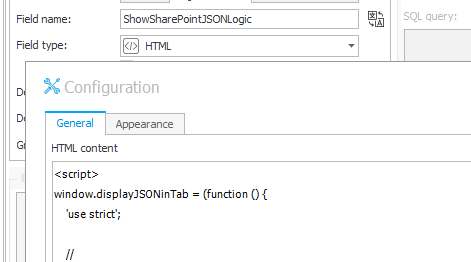
I added two HTML fields to a Tab:
- ShowSharePointJSONLogic
This needs to be the first field and you will copy the content of the generated JavaScript inside<script></script>elements
.
- AnchorField
This is placed after the first field, so that the JavaScript is already loaded:
Final comment
Writing this blog post took way longer than creating everything and I hope you will find other opportunities to improve the life of your users. Most often the small things are what matter. While the generated JavaScript may not be the best, it works.If it breaks in a future WEBCON version because the HTML DOM has changed, you can simply repeat Save the form design and structure to a file, save it to a new file, and tell the AI to compare the old and new versions and update the JavaScript accordingly.
Download
You can download the files here.
Comments